Plesk access

Change your Plesk password

Change the password for your own Plesk user from your profile. This is separate from your UKC Client Area password and from individual mailbox passwords.

Your Plesk profileOpen your account menu after signing in.

Use a unique passwordDo not reuse a mailbox or Client Area password.

Client Area accessSingle sign-on remains the easiest route.

Password change

Update it from your Plesk profile

  1. Open Plesk from My Services.
  2. Open the account menu at the top of Plesk and choose Edit Profile.
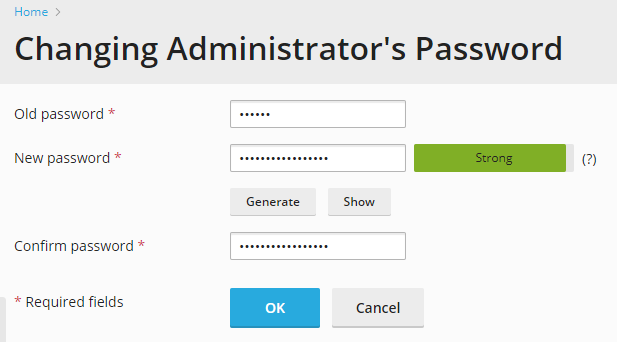
  3. Enter a new password in the password and confirmation fields.
  4. Choose Apply or OK, then store the new password securely.

What changes

Only the selected Plesk user is updated

This does not change your UKC Client Area login, FTP users, database users or mailbox passwords. Update those separately only when required.

You may not need a separate Plesk password.

The Client Area “Log in to Plesk” button normally creates a secure session automatically.

Cannot sign in?

Use the recovery route instead

If you cannot reach your profile, follow reset forgotten Plesk access. Do not send any password in a support ticket.

Was this answer helpful?

« Back