Webmail

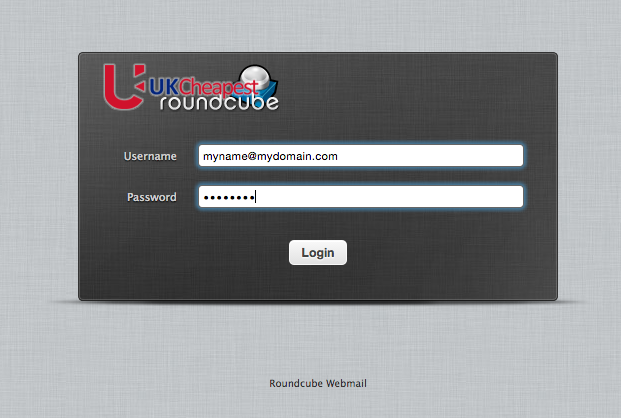
How to: Login to RoundCube

Read and send UKC email securely in your browser with Roundcube. No app setup is required.

Use inAny modern browser
UsernameFull email address
ConnectionSecure HTTPS

Have your mailbox details ready

You need your complete email address, mailbox password and assigned UKC server. Your server is shown in the hosting welcome email, for example ukc12.uk.

Use your server's secure webmail address

Add webmail. before your assigned UKC server name and open it using HTTPS.

Example server
ukc12.uk
Secure webmail address
https://webmail.ukc12.uk

Replace ukc12.uk with the server named in your own welcome email.

Enter the complete email address

  1. Open the secure webmail address for your assigned UKC server.
  2. In Username, enter the full mailbox address, including the part after the @ symbol.
  3. Enter the password for that mailbox. This may be different from your UKC Client Area or Plesk password.
  4. Select Login. Roundcube opens your inbox and folders.

Your mailbox is ready

You can read and send messages, create folders, manage contacts, set identities and update Roundcube preferences from any supported browser.

If Roundcube will not sign in

  • Enter the complete email address, not only the text before the @ symbol.
  • Use the mailbox password, not the UKC Client Area or Plesk account password.
  • Check that the browser is using https:// and the correct assigned server.
  • Type the password manually once to rule out an old password stored by the browser.
  • If the password is unknown, reset the mailbox password in Plesk and then try again.

Still cannot sign in?

Tell the Helpdesk the mailbox address and assigned UKC server, and include the exact error shown. Never send your mailbox password in a ticket.

Contact the Helpdesk

Was this answer helpful?

« Back